Use this guide when you move from Photo Mechanic to Cullibrate. It covers the Photo Mechanic keyboard preset, how Photo Mechanic ingest settings map to Cullibrate imports, and which XMP metadata carries across.
Use the Photo Mechanic keyboard preset
During first launch, choose Photo Mechanic under Which shortcuts should Cullibrate use? This also switches Cullibrate to the Workbench appearance.
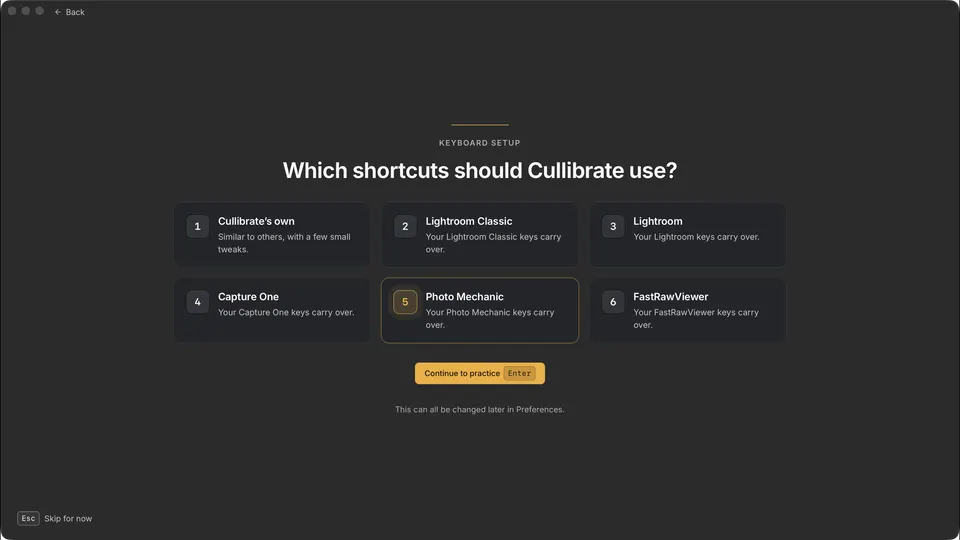
Already set up? Apply the same preset from Preferences:
- Open Preferences (Settings on Windows) and choose Keyboard.
- Under Bring your shortcuts with you, click Apply application preset and choose Photo Mechanic.
- Review the differences from your current profile, then click Apply preset. Cullibrate creates a keyboard profile named Photo Mechanic and switches to it.
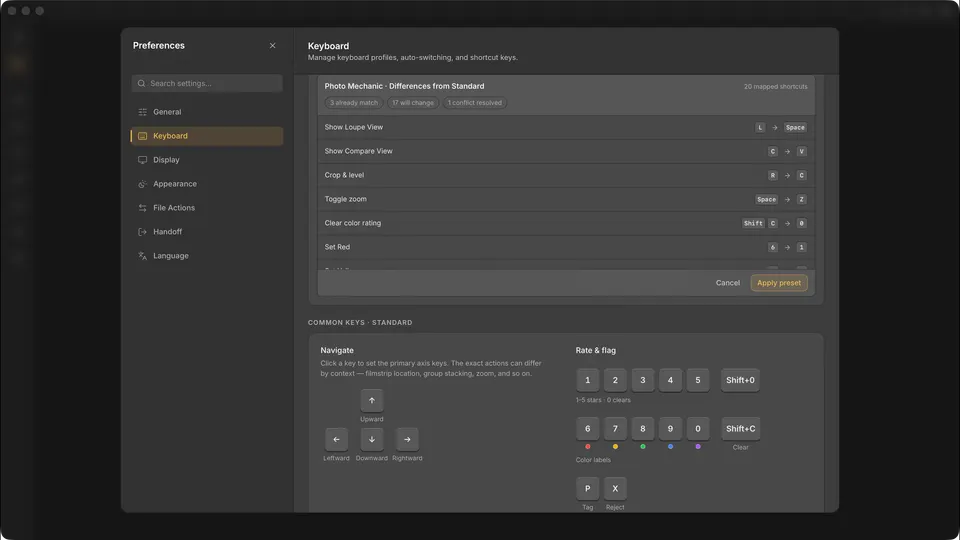
The preset changes these assignments:
- Space / V — Filmstrip (Preview) / Compare
- C / Z / I — Crop / preview zoom / Info
- ← / → — previous / next photo
- 0–5 — clear or set colour labels
- Ctrl0–Ctrl5 on Mac / Shift0–Shift5 on Windows — clear or set stars
- T — toggle tag
- Reject and clear keep Cullibrate's defaults: X rejects and ShiftU clears a tag or reject.
- Photo Mechanic has eight colour classes. Cullibrate has five colour labels, so colour classes 6 to 8 have no equivalent.
- A Cullibrate shortcut that the preset needs moves to a nearby alternative. The review step lists each move before you apply.
- Some views keep their own Space action: with several photos selected in Grid, Space opens Survey, and in a video it plays or pauses.
How Photo Mechanic ingest maps to Cullibrate
Start from File → New Copy/Import, or from the Card detected prompt when you insert a card. Choose Copy & Cull to copy photos and start reviewing while the copy continues.
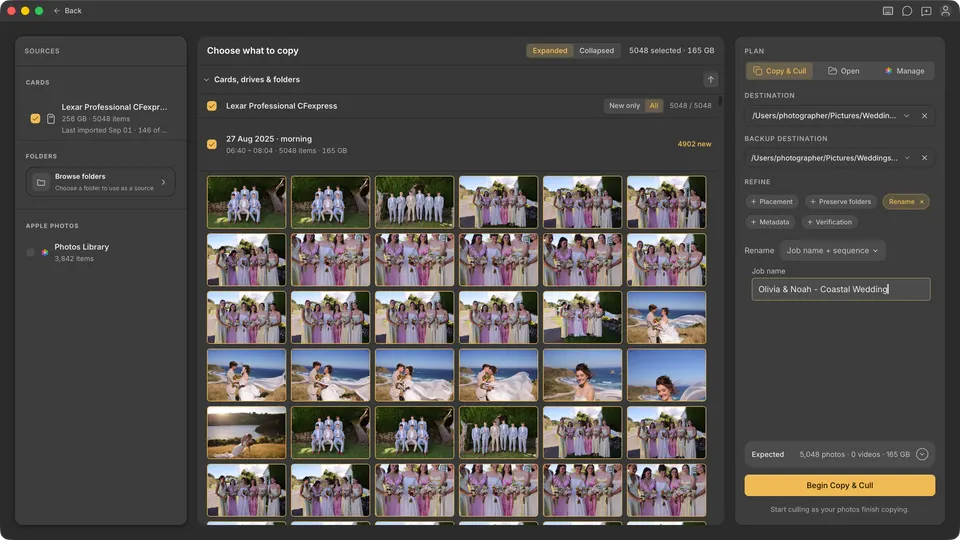
| Photo Mechanic | Cullibrate |
|---|---|
| Ingest from several cards | Select more than one card in the same import |
| Incremental Ingest | New only, which skips files already imported from that card |
| Primary and secondary destinations | Destination and Backup destination |
| Destination folder variables | Placement, built from YYYY, MM, DD, YYYYMMDD, YYYY-MM-DD, Job name, and Custom text |
| Rename with variables and a sequence | Rename, which adds Original name and Sequence |
| Preserve folder hierarchy | Preserve folders: Folders that separate photos, or All subfolders |
| IPTC template on ingest | Metadata template: Creator, Copyright, Caption, and Keywords |
Cullibrate patterns are built from parts rather than typed variables. Photo Mechanic variables such as {filenamebase} or IPTC field variables are not recognised, so rebuild each template from the matching parts and save it as a pattern for later imports.
- Dates use each photo's capture date, or one date for the whole import.
- Original name and Sequence work in filenames, not folder names.
- Copies never overwrite existing files. A matching file is skipped; if anything differs, the photo is copied with a new suffix.
- Turn on Verification to check every copy byte for byte before metadata is applied.
XMP compatibility
Cullibrate reads XMP when it imports photos and writes your changes back to XMP. RAW files use a sidecar next to the photo; standalone JPEG and DNG files keep XMP inside the file.
| Metadata | From Photo Mechanic | Written by Cullibrate |
|---|---|---|
| Star ratings | Read | Written |
| Colour labels named Red, Yellow, Green, Blue, or Purple | Read | Written |
| Other colour class names | Ignored | Not written |
| Tagged | Not read | Written as a Lightroom pick |
| Rejected | No Photo Mechanic equivalent | Written as a Lightroom reject |
| Creator and copyright | Read | Written at ingest and from Edit → Edit Creator & Copyright… |
| Caption and keywords | Read | Written at ingest only |
Photo Mechanic writes Red, Yellow, Green, Blue, and Purple only when its colour classes use those names. Camera Bits provides a Lightroom Classic preset for this in Photo Mechanic's preferences. Photo Mechanic keeps Tagged in its own XMP field, which Cullibrate does not read.
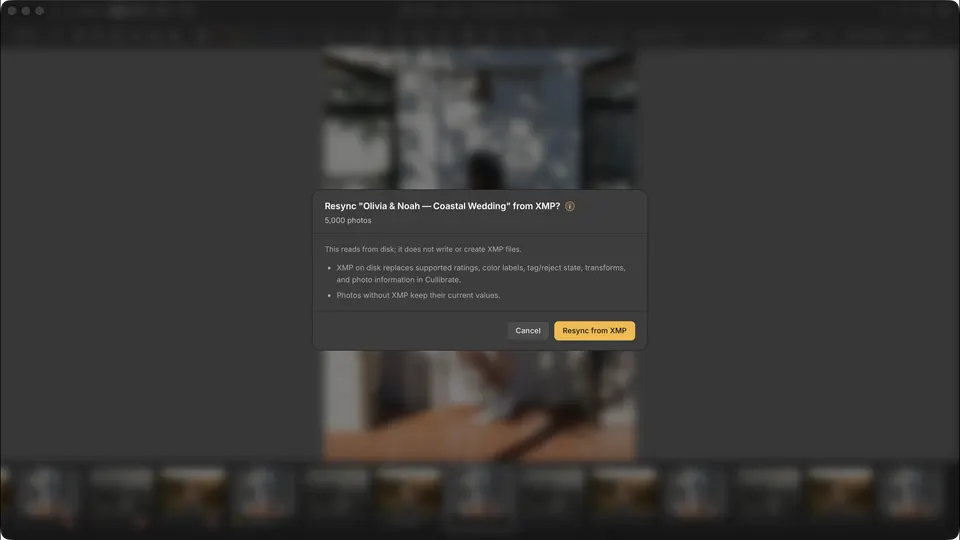
If you change ratings or colour labels in Photo Mechanic after importing, save them there, then choose File → Resync External XMP Changes… in Cullibrate.
What Cullibrate does not replace
Cullibrate focuses on ingest and photo review. These Photo Mechanic tools have no Cullibrate equivalent today:
- Code replacements
- Full IPTC templates. Ingest templates cover Creator, Copyright, Caption, and Keywords, and Edit → Edit Creator & Copyright… changes those two fields later.
- Caption and keyword editing after import (yet)
- FTP upload
- Contact sheet printing
- Live Ingest from a watched folder