A Colorbration is your editing style, applied before your photos reach Lightroom Classic. It starts from a Lightroom preset you already use, then learns from the edits you make, so each photo arrives closer to how you finish it. New to Colorbrations? See What is a Colorbration?.
Start from a preset
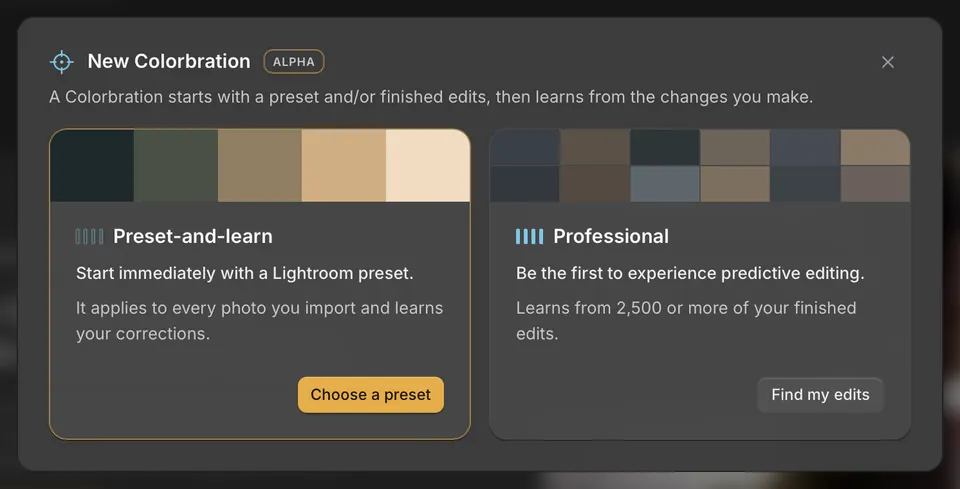
- Open Home → Colorbrations and choose New Colorbration. In Handoff, you can also choose Edit → Set up.
- Choose Preset-and-learn → Choose a preset.
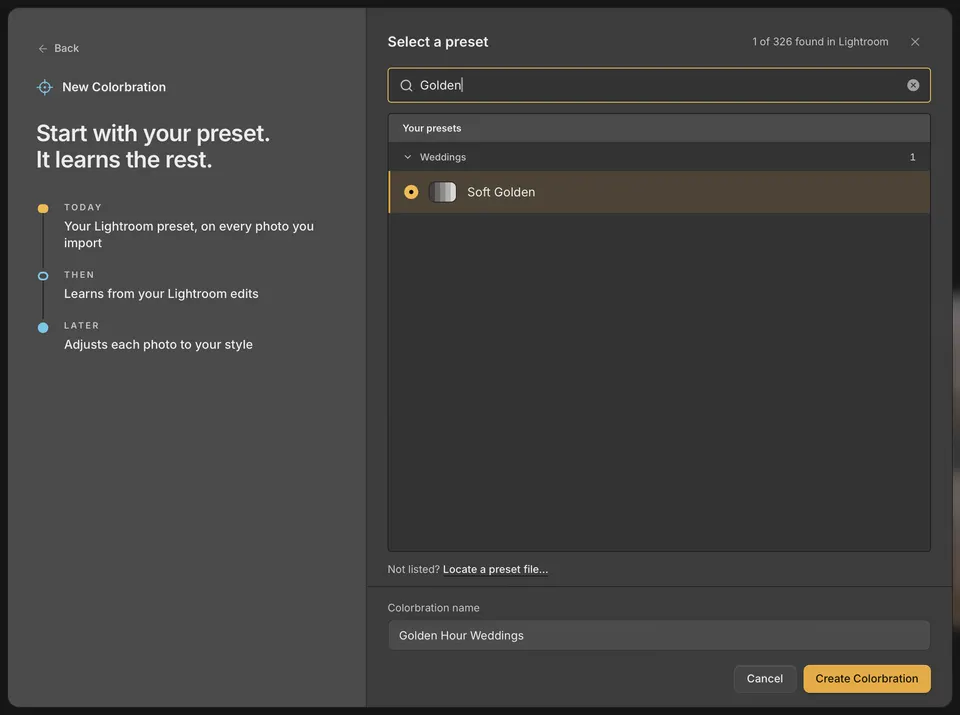
- Pick one of your Lightroom Classic presets. Search for it, or look under Your presets.
- Check the name, then choose Create Colorbration.
Next, Cullibrate offers to find photos you have already finished with that preset. Choose Find my past edits to give it a head start, or Not now to use the preset alone. You can add past edits later. See How a Colorbration learns.
Which presets you can use
- Develop presets in Lightroom Classic: your own, imported ones, and Adobe presets.
- Presets with masks or adaptive settings aren't listed yet. A color profile can't be used on its own.
- Don't see a preset you just made? Choose Look again. To use a preset file from disk, choose Not listed? → Locate a preset file…
No presets of your own yet
- In Lightroom Classic, edit one photo in Develop until it's your look.
- Presets panel → + → Create Preset…
- Back in Cullibrate, choose Look again. It appears under Your presets.
Professional Colorbrations
Professional starts from 2,500 or more of your finished edits instead of a preset. Professional Colorbrations are coming soon: you can find and add your edits now, and it appears in Handoff once its model is trained. In the meantime, a preset Colorbration works straight away and learns from your edits too.