Cullibrate is a desktop app for Apple-silicon Mac and x64 Windows. Photo processing stays local by default, and the app works offline after activation. Your originals never leave your machine; see Privacy for what is shared and when.
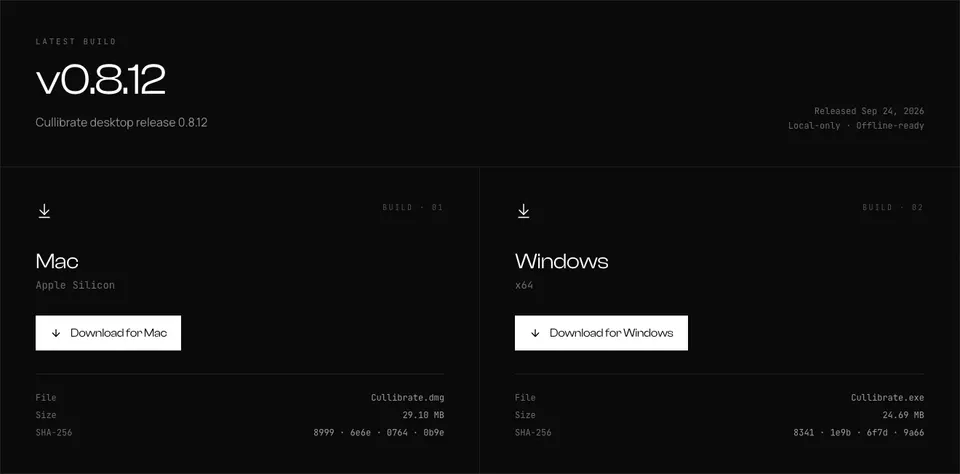
On macOS Apple Silicon
- Open the Download page and sign in. No account yet? Choose Start free trial — the 7-day trial needs no card.
- Click Download for Mac. Your browser saves Cullibrate.dmg to your Downloads folder.
- Open Cullibrate.dmg and drag Cullibrate into your Applications folder.
- Launch Cullibrate from Applications. On first open, macOS may ask you to confirm — click Open.
- Sign in when Cullibrate asks. Your browser opens to finish — see Signing in on the desktop app.
On x64 Windows
- Open the Download page and sign in. No account yet? Choose Start free trial — the 7-day trial needs no card.
- Click Download for Windows. Your browser saves Cullibrate.exe to your Downloads folder.
- Open Cullibrate.exe and follow the setup prompts.
- When setup finishes, open Cullibrate from the Start menu.
- Sign in when Cullibrate asks. Your browser opens to finish — see Signing in on the desktop app.